 |
 |
||
 |
|||
 |
 |
 |
|
|
|
||||
|
||||
| Manual Shop | ||||
|
||||
[ Windows 8.1 / Windows 8.1 Pro ]
How to put Windows to sleep
| Windows Mamual |
| Power Management |
| WEB Site QR Code |
 |
| Other Windows |
| Windows 11 |
| Windows 10 |
| advertisement |
| Japanese Edition |
|
| Windows 11 |
| Windows 10 |
| Windows 8.1 |
[ The explanation is based on Windows 8.1/Windows 8.1 Pro. ]
[ How to put Windows to sleep ]
● How to put Windows to sleep by clicking the Start button and then clicking Power
● How to restart Windows by right-clicking the Start button
◆ [ How to put Windows to sleep by clicking the Start button and then clicking Power ]
1. Click "Power Options" on the Start screen.
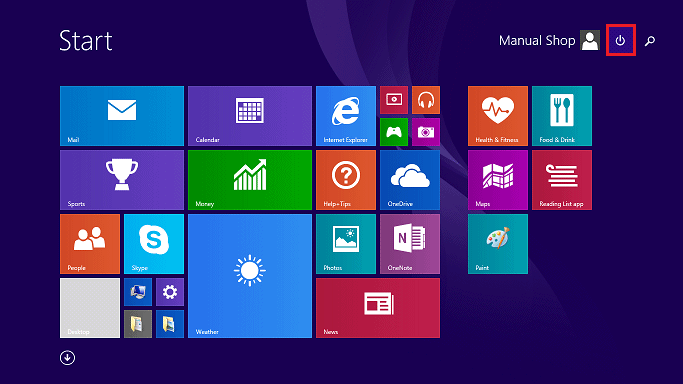
2. Click "Sleep" in the menu that appears.
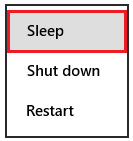
That's how to put Windows to sleep.
◆ [ How to put Windows to sleep by clicking the Start button and then clicking Power ]
1. Click "Power Options" on the Start screen.

2. In the menu that appears, click "Shut down or sign out" and then "Restart."
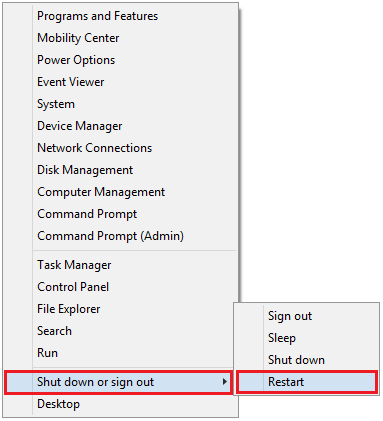
That's how to put Windows to sleep.