

|
|
||
|
|||
|
||||||||||||||||||||||||||||||||||||||||||||||||||
|
||||||||||||||||||||||||||||||||||||||||||||||||||
[ Windows 8.1 / Windows 8.1 Pro ] |
|
|||||||||||||||||||||||||||||||||||||||||||||||||
[ The explanation is based on Windows 8.1/Windows 8.1 Pro。 ] [ How to View Device Manager ] ● Right-click the Start button to display Device Manager ● How to display Device Manager using the Run command
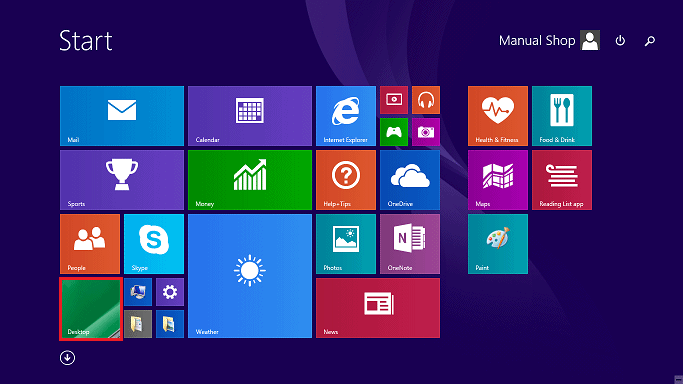
◆ [ Right-click the Start button to display Device Manager ] 1. Click "Desktop" on the Start screen.
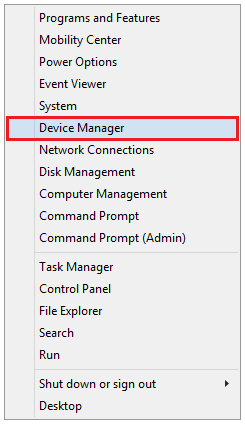
2. When the desktop appears, right-click the Start button.
3. Click "Device Manager" in the menu that appears.
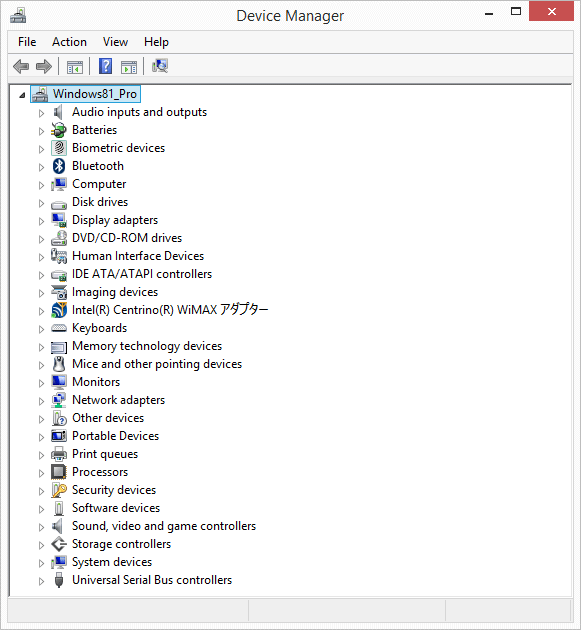
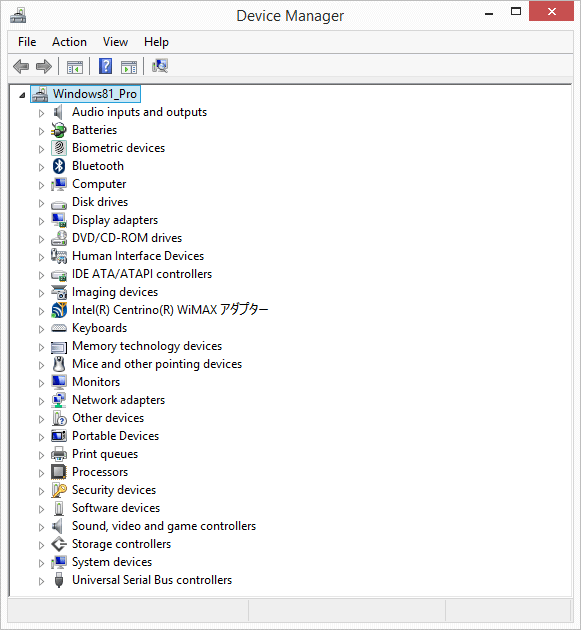
4. When the "Device Manager" screen appears, check the settings of the necessary devices and update them. Once you have confirmed the settings, click the "Close" [(X)] button in the upper right corner of the "Device Manager" screen.
That's how to display Device Manager.
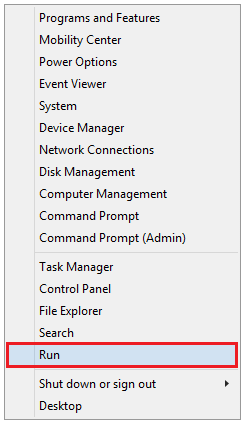
◆ [ How to display Device Manager using the Run command ] 1. Right-click the Start button on the desktop.
2. Click "Run" in the menu that appears.
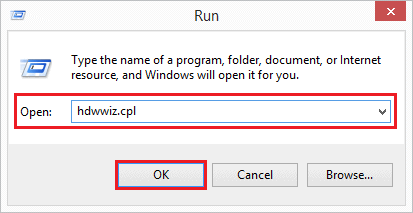
3. Enter "hdwwiz.cpl" in the "Name:" field and click the "OK" button.
4. When the "Device Manager" screen appears, check the settings of the necessary devices and update them. Once you have confirmed the settings, click the "Close" [(X)] button.
That's how to display Device Manager. |
||||||||||||||||||||||||||||||||||||||||||||||||||