

|
|
||
|
|||
|
|||||||||||||||||||||||||||||||||||||||||||||||||||||||||||||||||
|
|||||||||||||||||||||||||||||||||||||||||||||||||||||||||||||||||
[ Windows 8.1 / Windows 8.1 Pro ] |
|
||||||||||||||||||||||||||||||||||||||||||||||||||||||||||||||||
[ The explanation is based on Windows 8.1/Windows 8.1 Pro. ] [ How to check your Windows power settings ] ● How to check your Windows power settings from the Control Panel ● How to check Windows power settings from the Start screen
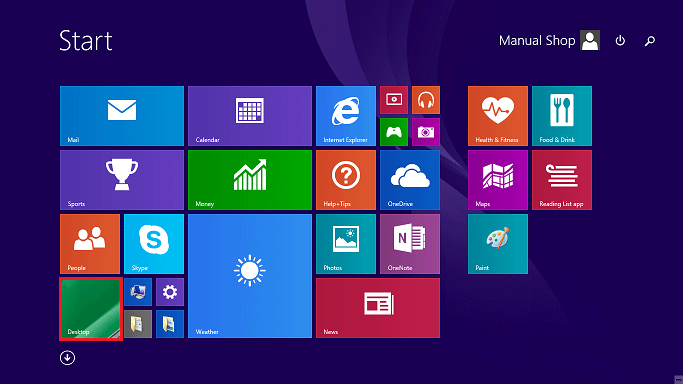
◆ [ How to check your Windows power settings from the Control Panel ] 1. Click "Desktop" on the Start screen.
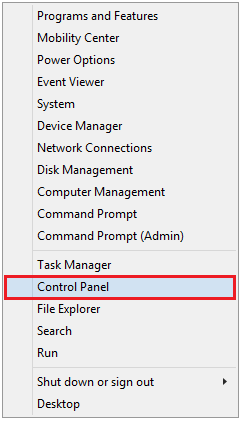
2. When the desktop appears, right-click the Start button.
3. Click "Control Panel" in the menu that appears.
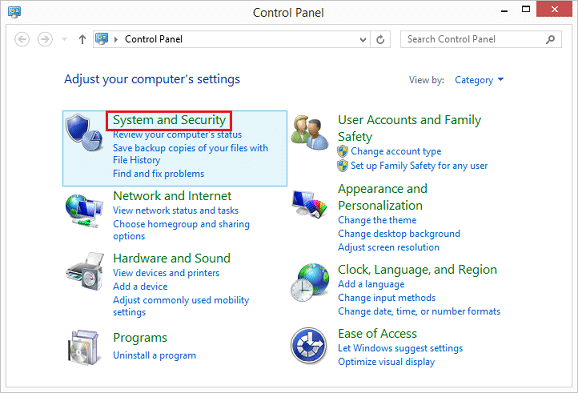
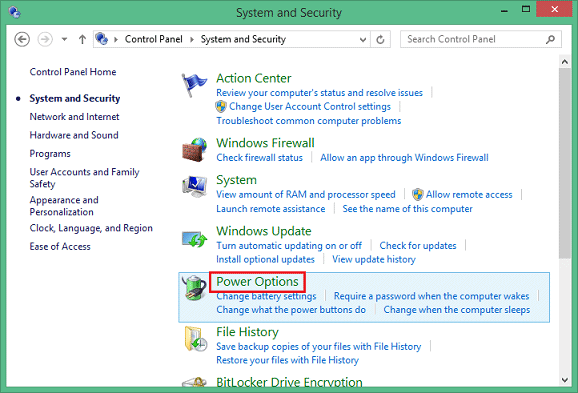
4. When the Control Panel screen appears, click System and Security.
5. When the "System and Security" screen appears, click "Power Options."
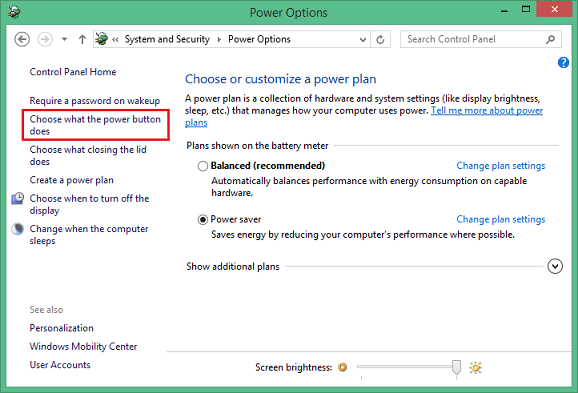
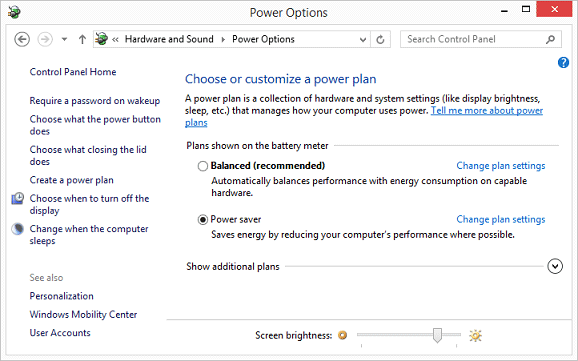
6. When the "Power Options" screen appears, click "Choose what the power buttons does."
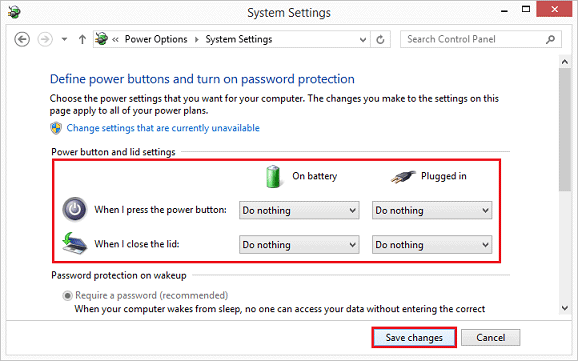
7. Check your power button and lid settings and click the "Save Changes" button. ・When I press the power button: ・When I close the cover: ※ The above settings are explained as an example. Change the settings as needed. ※ If you can't click the "Save Changes" button、
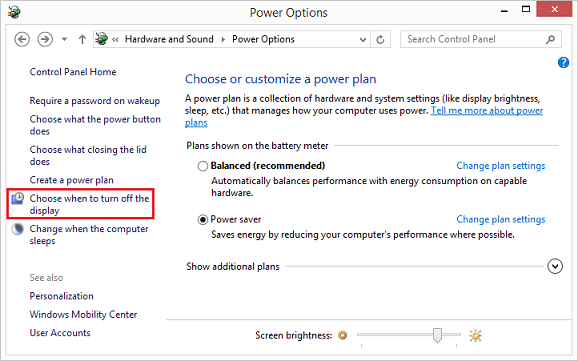
8. Return to the Power Options screen and click "Cheese when to turn off the display."
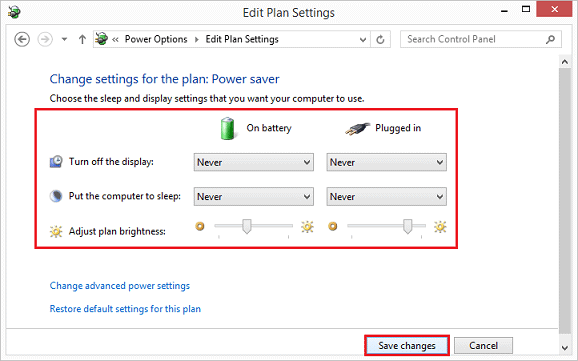
9. When the "Edit Plan Settings" screen appears, confirm the following settings and click the "Save Changes" button. ・To turn off the display: ・When you press the sleep button: ※ The above settings are explained as an example. Change the settings as needed. ※ If you can't click the "Save Changes" button、
10. When you return to the "Power Options" screen, click the "Close" button.
This is how to check your Windows power settings from the Control Panel.
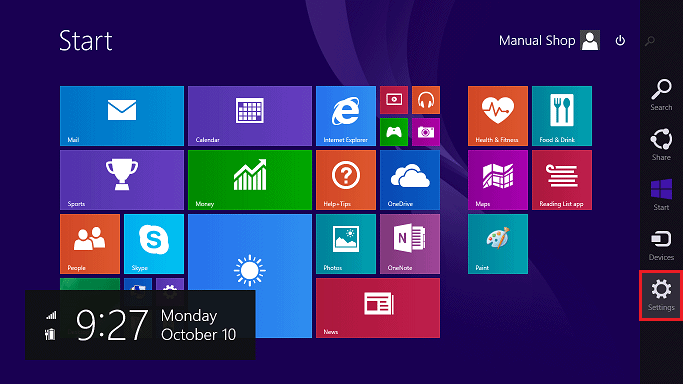
◆ [ How to check Windows power settings from the Start screen ] 1. Move the mouse pointer to the top right or bottom right of the Start screen, and then click Settings.
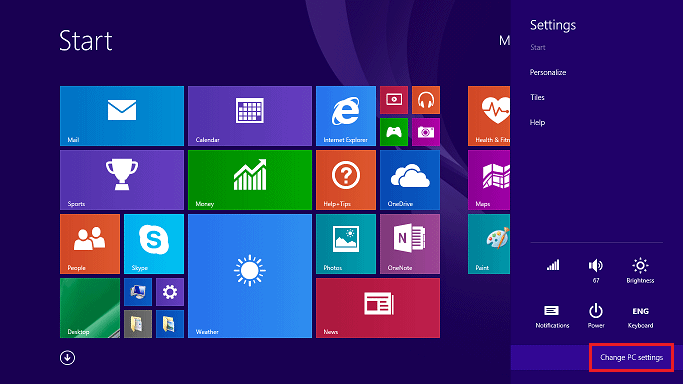
2. When the "Settings" menu appears, click "Change PC settings" in the bottom right corner of the screen.
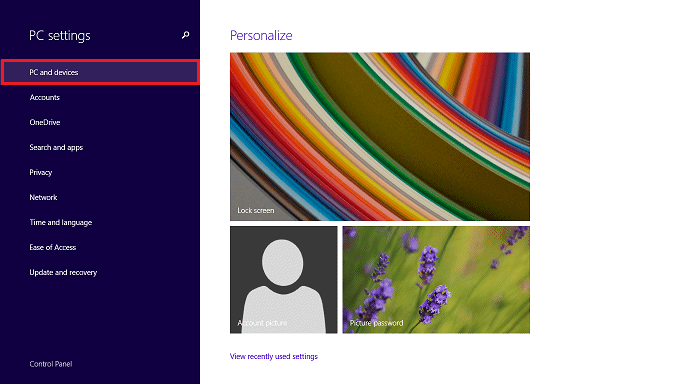
3. When the "PC Settings" screen appears, click "PC and devices."
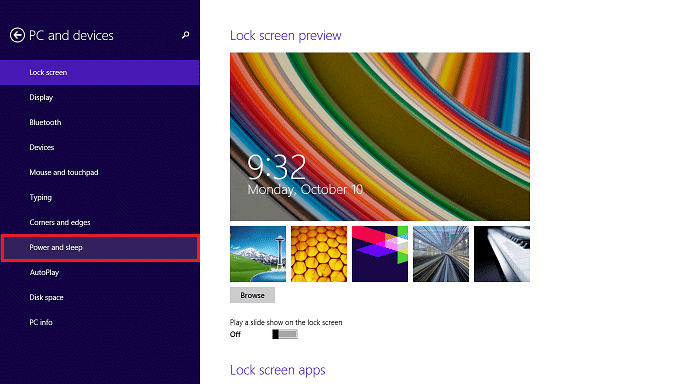
4. When the "PC and Devices" screen appears, click "Power and Sleep."
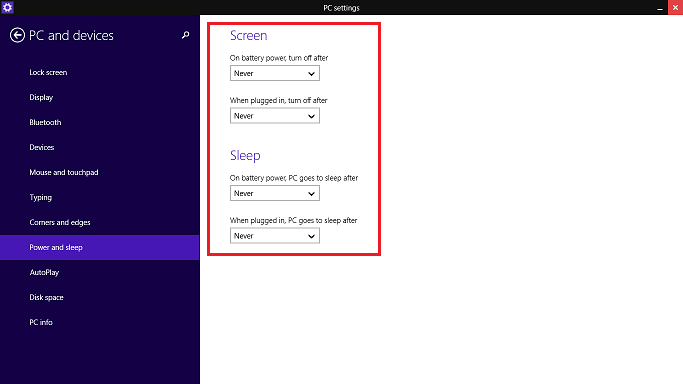
5. Check the following settings," move the mouse pointer to the top right corner of the screen, and click the "Close (x)" button.
This is how to check Windows power settings from the Start screen. |
|||||||||||||||||||||||||||||||||||||||||||||||||||||||||||||||||