

|
|
||
|
|||
|
|||||||||||||||||||||||||||||||||||||||||||||||||||||||||||
|
|||||||||||||||||||||||||||||||||||||||||||||||||||||||||||
[ Windows 11 Home / Windows 11 Pro ] |
|
||||||||||||||||||||||||||||||||||||||||||||||||||||||||||
[ This explanation is based on Windows 11 Home/Windows 11 Pro. ] ※ Checked version : 21H2/22H2/23H2/24H2/25H2 ● If you want to display hibernation in the power item on the Start screen, please do the following:
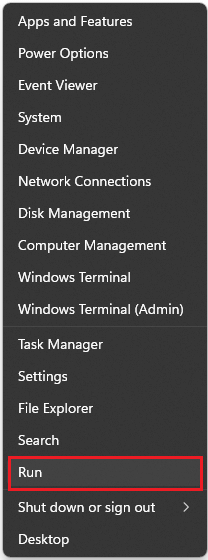
1. Right-click the Start button on the desktop.
2. Click "Run" in the menu that appears.
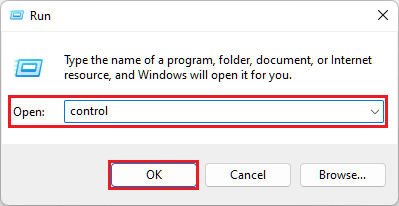
3. Enter "control" in the "Name:" field and click the "OK" button. ※ Enter "control" in the "Name:" field.
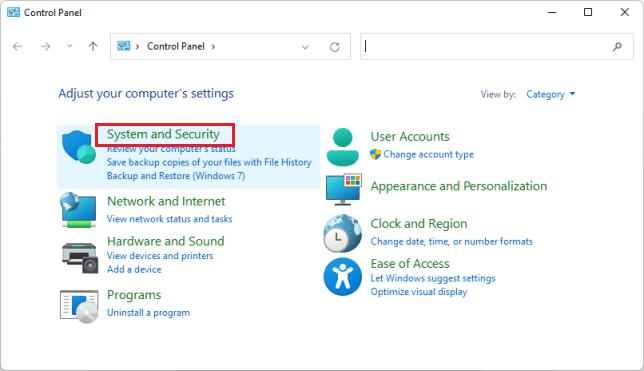
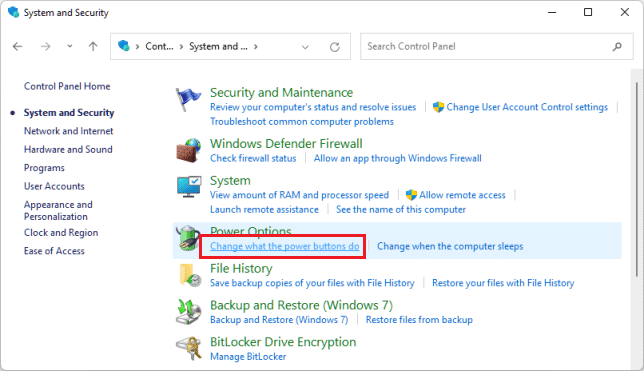
4. When the Control Panel screen appears, click System and Security.
5. When the "System and Security" screen appears, click "Change what the power buttons do."
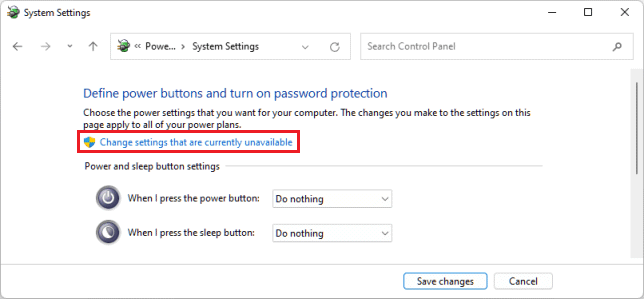
6. When the "System Settings" screen appears, click "Change settings that are currently unavailable."
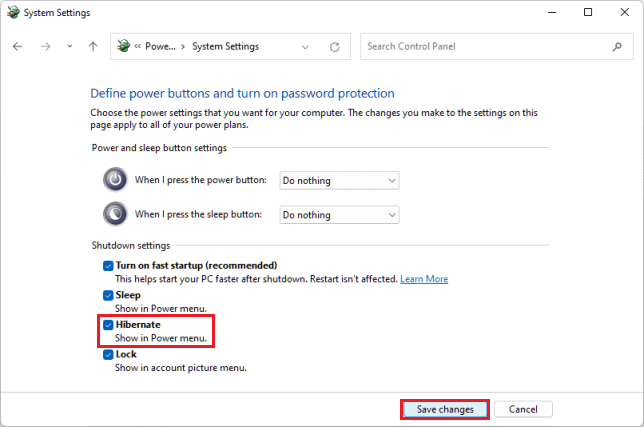
7. Check "Hibernate" and click the "Save Changes" button.
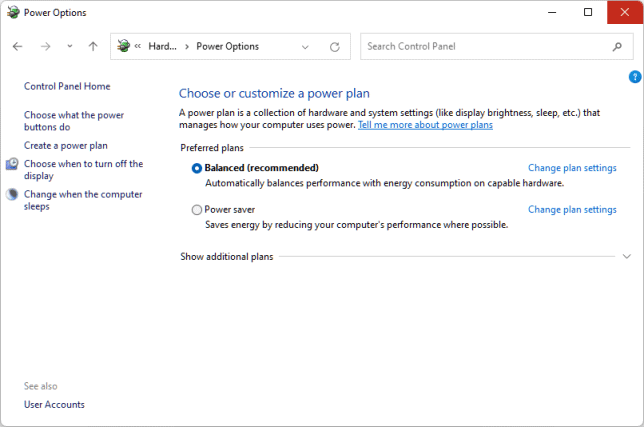
8. When you return to the "Power Options" screen, click the "Close" button.
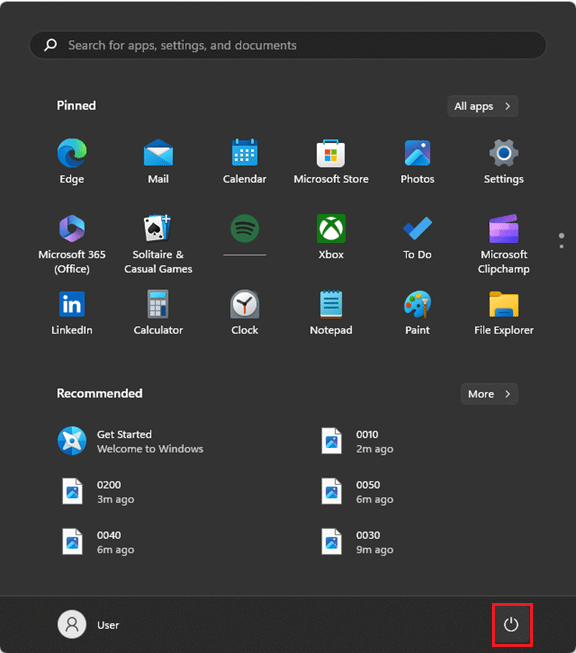
9. Click the Start button on the desktop.
10. When the Start screen appears, click "Power."
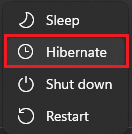
11. Make sure there is a "Hibernation" option in the menu that appears.
The process of displaying hibernation in the power item on the Start screen is complete.
This is how to display hibernation in the power item on the Start screen. |
|||||||||||||||||||||||||||||||||||||||||||||||||||||||||||