

|
|
||
|
|||
|
||||||||||||||||||||||||||
|
||||||||||||||||||||||||||
[ Windows 11 Home / Windows 11 Pro ] |
|
|||||||||||||||||||||||||
[ This explanation is based on Windows 11 Home/Windows 11 Pro. ] ※ Checked version : 21H2/22H2/23H2/24H2/25H2 [ How to shut down Windows ] ● Click the Start button and then click Power to shut down Windows. ● How to Shut Down Windows by Right-Clicking the Start Button
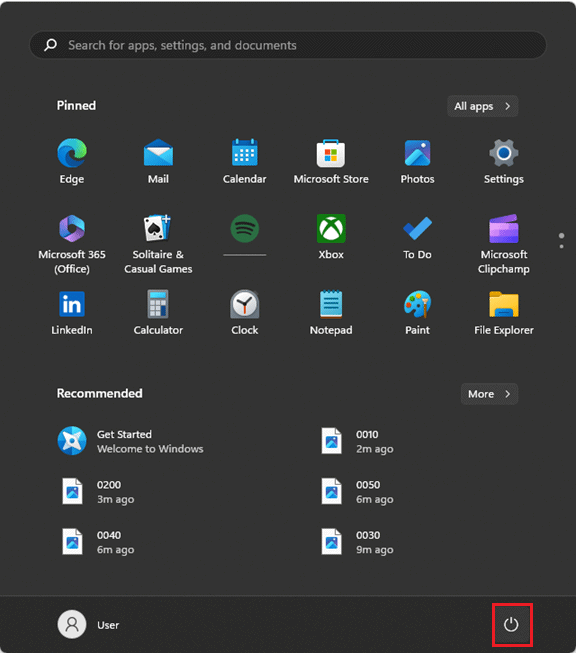
◆ [Click the Start button and then click Power to shut down Windows. ] 1. In Windows 11, click the Start button in the center of the screen.
2. When the Start screen appears, click "Power."
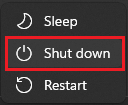
3. Click "Shutdown" in the menu that appears.
That's how to shut down Windows.
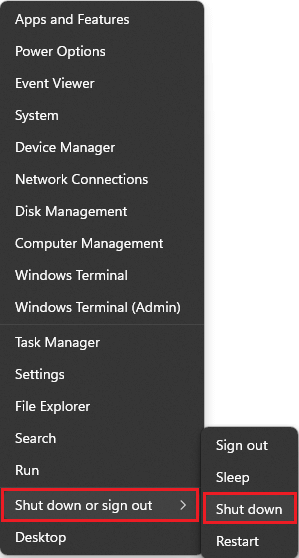
◆ [How to Shut Down Windows by Right-Clicking the Start Button ] 1. Right-click the Start button in the center of the Windows 11 screen.
2. In the menu that appears, click "Shut down or sign out" and then "Shut down."
That's how to shut down Windows. |
||||||||||||||||||||||||||